
The first time I opened Suno, I typed one clumsy sentence about a rainy afternoon and clicked a button. Ninety seconds later a full song was playing back at me, vocals and all.
That gap, between a half-formed idea and a finished track, is the reason I wrote this guide.
My review walked through whether Suno earns a place in your toolkit. This piece starts the moment after that decision. You have signed up, or you are about to, and you want an actual song in front of you by the time you reach the bottom of the page. I will walk through every click I make, starting at the empty sign-up screen and finishing with a downloaded MP3 sitting in my files. Follow along and you will end up with something you can play for someone.
We start where everyone starts, which is getting through the front door.
Creating your account: the part that takes two minutes
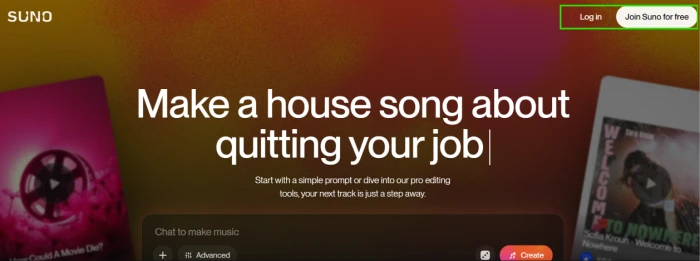
Head to suno.com and look for the sign-up option. You sign in with an account you already own. I used Google; Discord and Microsoft work the same way. There is no separate program to install, since Suno runs straight in your browser, and a mobile app exists if you want to make songs from your phone later on.
New accounts open on the free plan by default.
That free tier hands you fifty credits a day, which works out to roughly ten full songs in twenty-four hours, and it never asks for a card. If you want to know whether it is good for you pls go through our complete Suno AI review. For a first song, that is far more room than you will touch. One detail I wish I had known on day one: free songs are meant for personal use and carry a small Suno credit, so anything involving publishing or money is a paid-plan question I handle in the review rather than here.
Finding where songs actually get made
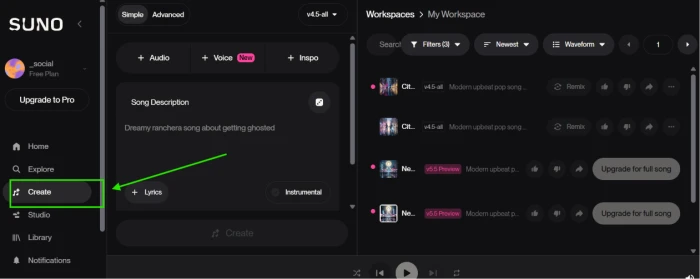
Once you are signed in, the screen can feel busy. Ignore most of it for now. Look at the menu running down the left side and click Create. That one tab is where your first song begins, and it is the only corner of the interface you need today.
Clicking Create opens a clean workspace. Think of it as your studio for the next few minutes.
The one choice that shapes everything: Simple or Custom
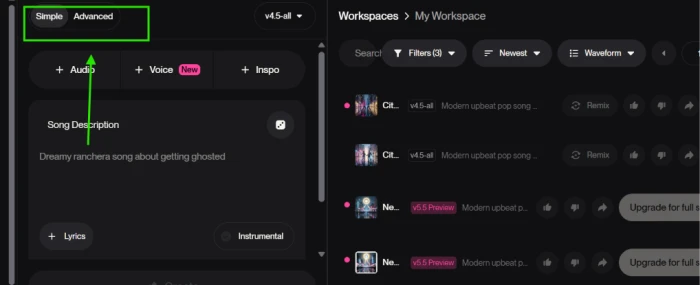
At the top of that workspace you will spot two tabs sitting next to each other, labelled Simple and Custom. This is the first real decision you make, and it carries more weight than it appears to.
Simple mode gives you a single description box. You write what you want in plain English, and Suno takes care of the lyrics, melody, arrangement, and vocals on its own. Custom mode pries all of that open with separate fields for your own lyrics and style, plus extra sliders for finer control. It is powerful, and it is also where beginners tend to drown.
For your first song, I want you in Simple mode.
We will come back to Custom mode near the end, once you have a finished track and the appetite for more control. For now, Simple keeps the path short.
Writing the prompt that becomes your song
Here is where the fun starts, and where most first attempts quietly go wrong.
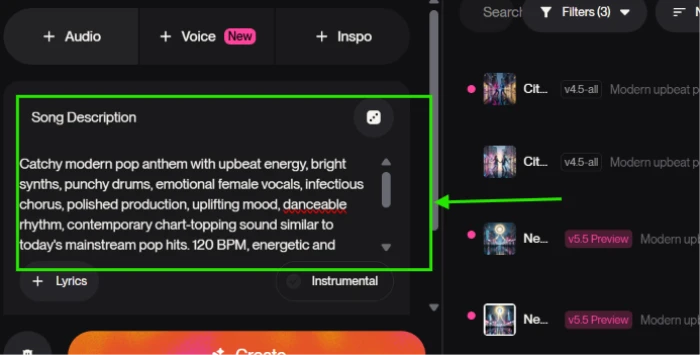
In Simple mode you get one field of around two hundred characters. The instinct is to type something like “a nice happy song.” Fight that instinct. A vague prompt gives Suno nothing to hold onto, and what comes back sounds like nobody made it.
The fix is detail. Name the genre. Name the mood. Pick out an instrument or two. Say what kind of vocal you want, then spell out the feeling you are chasing. Instead of “a nice happy song,” try something closer to “upbeat indie pop about a Sunday morning, jangly guitar, warm female vocals, big sing-along chorus.” If you would rather skip singing altogether, there is an instrumental toggle sitting right there. Flip it on and Suno builds a track with no vocals at all.
A trick I lean on: when I cannot quite describe the sound in my head, I ask a chatbot to turn a reference into neutral descriptors first, then paste those into the box. Suno will not let you name a specific artist, so describing the characteristics is how you get close. I will not go deep on prompt craft here, since it deserves its own article, but this single habit lifts your results more than anything else.
Pressing Create and waiting out the longest ninety seconds
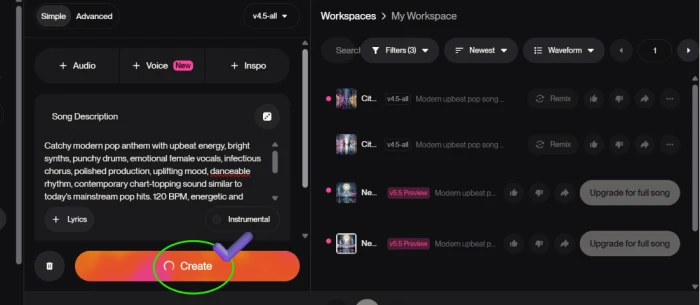
With your prompt sitting in the box, click Create.
Suno does something I appreciate. It hands you two versions of your idea instead of one. Each lands at roughly two to three minutes long, and the whole thing usually wraps in under a minute. You spend a small handful of credits doing it, comfortably inside that daily free allowance from the first section.
Then you wait. It is a strange ninety seconds, watching a progress bar while a song gets written on the other side of it.
Listening back and picking your favorite
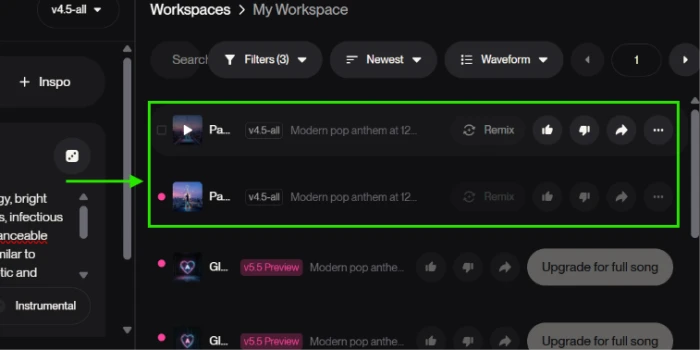
When generation finishes, both tracks drop into your library off to the side. Play the first one. Play the second. They are variations on the same prompt, sometimes nearly identical, sometimes startlingly different from each other.
This is the moment the whole thing pays off. The first time I heard a chorus I had described in one sentence come back as a real hook, I replayed it about six times before I touched anything else.
Pick the one that grabs you. If neither does, that is normal, and the next section is built for exactly that situation.
When the first try is close but not quite
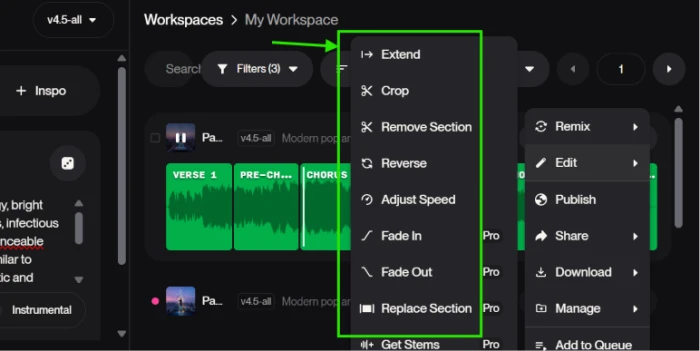
Plenty of times, my first generation is almost right. The verse works but the ending collapses, or the energy is spot on while the vocal is the wrong one. This is the point where Suno stops behaving like a slot machine and starts behaving like a tool.
You have a handful of moves. You can extend a song to make it run longer. You can cover it in a fresh style to keep the lyrics while swapping the whole mood. You can nudge the speed up or down. You can also regenerate from scratch to pull a new pair of versions from the same prompt.
Regenerating is not a confession that you failed. It is baked into how the tool expects to be used. I almost never keep my first attempt, and making peace with that early is what made the whole process click for me.
Once a version sounds the way you imagined it, you are ready for the final step.
Downloading your song and taking it with you
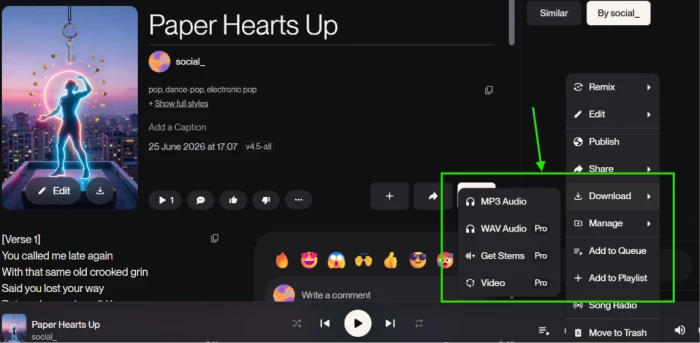
You have a finished track. Now you pull it off the screen and onto your own device.
Next to your song you will find the option to download it or copy a shareable link. Downloads arrive as an MP3, or as a video file if you want something ready to post. Save it, and there it is, a real song you made, sitting in your files.
The natural next move is more control. Open Custom mode and you can write your own lyrics using structure tags like [Verse] and [Chorus] to steer exactly where the song travels, which I cover in its own guide. The track you just made already settles the only question that mattered when you landed on this page, which is whether the whole thing actually works.
The Bottom Line
Go back to where this started: one clumsy sentence about a rainy afternoon, and ninety seconds later a song playing back at me. That gap is the whole pitch, and now you have crossed it yourself. You signed in, found the Create tab, stayed in Simple mode, wrote a prompt with actual detail in it, and pulled an MP3 onto your own device. That is a real song, and you made it before you finished reading a single guide on music theory.
If you remember nothing else, remember the two things that did the most work. Detail in the prompt is what separates a track that sounds like nobody made it from one that sounds like you meant it. And regenerating is not failure, it is the tool working as intended. I almost never keep my first attempt, and the day I made peace with that is the day this stopped feeling like a slot machine and started feeling like a studio.
Everything past this point is just more control. Custom mode, structure tags, prompt craft, the paid-plan questions I handle in the review. All of it builds on the same loop you just ran. But the only question that mattered when you landed on this page is already answered, and it is sitting in your files. Play it for someone.
Comments
Join the discussion and share your perspective.